

Music and sound analysis
Navidrome or Jellyfin supplies the music and AudioMuse-AI the analysis, exactly as for the app. The radio keeps its own copy of what it needs.
Lumae Radio
Lumae Radio turns a Raspberry Pi into an always-on radio for your home. It plays stations made from your own music, follows the energy of your day, and gives every song a rest before it comes back.
You can install it today. It's in use on a Raspberry Pi with a HiFiBerry DAC+ HD, but other boards and DACs, the 2 GB target with a 60,000-track library, long unattended runs and Jellyfin on a radio are still being checked. Expect rough edges, and keep the Pi on a network you trust. Setting it up and controlling it from your phone need the current Lumae beta build.
How it works
Lumae on your phone is for you. Lumae Radio is for the room: the kitchen, the living room, the shop. It plays by itself all day, from the same servers, and your phone is only the remote.
Navidrome or Jellyfin supplies the music and AudioMuse-AI the analysis, exactly as for the app. The radio keeps its own copy of what it needs.
Chooses every track, crossfades, and plays through a DAC board or USB DAC on the Pi. It keeps going with your phone switched off.
Lumae finds the radio on your home network and becomes its remote. The radio also has its own web page for browsers at home.
Stations
A station is a sound, not a list. Start one from a Vibe on your phone, a song, a few seeds or a Vibe code, and the radio picks what fits, one track at a time, around the clock.
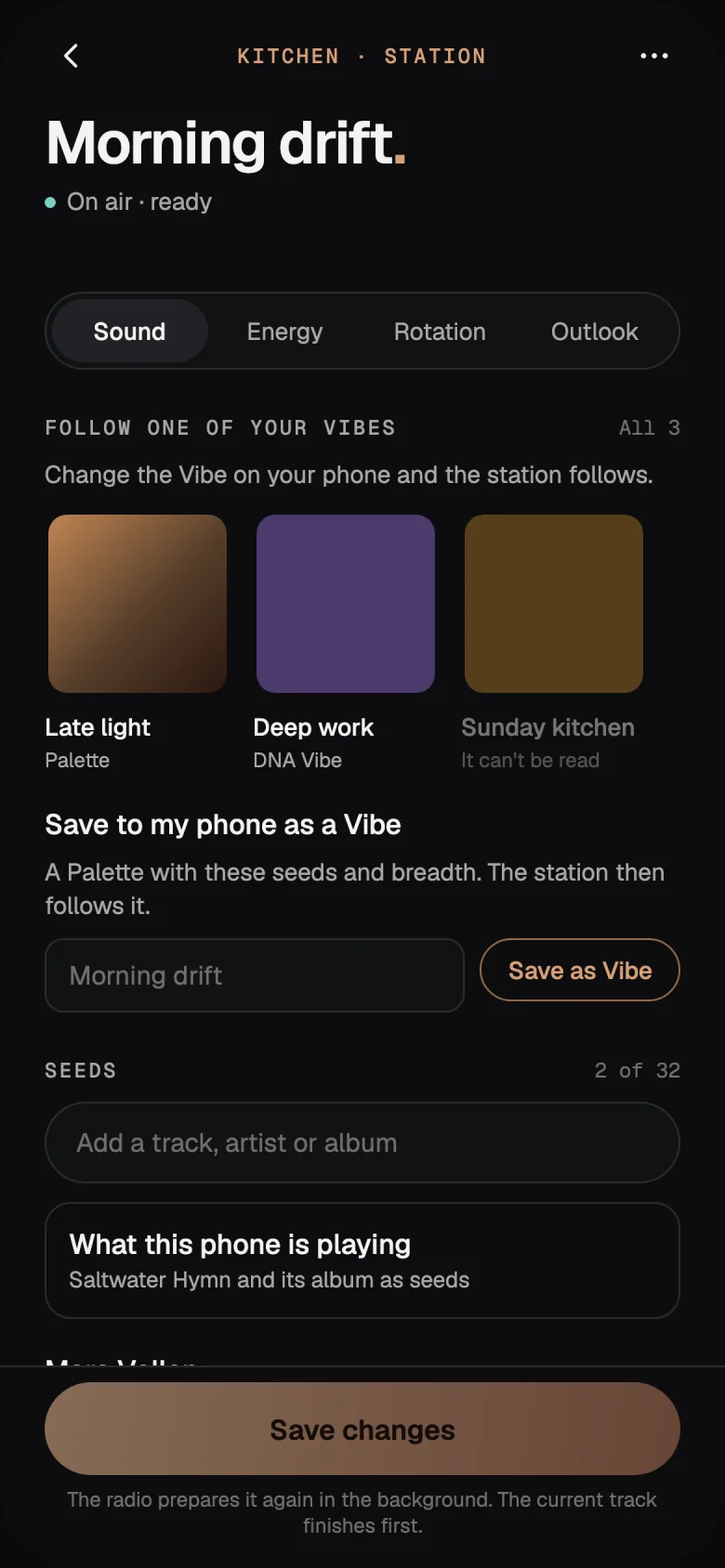
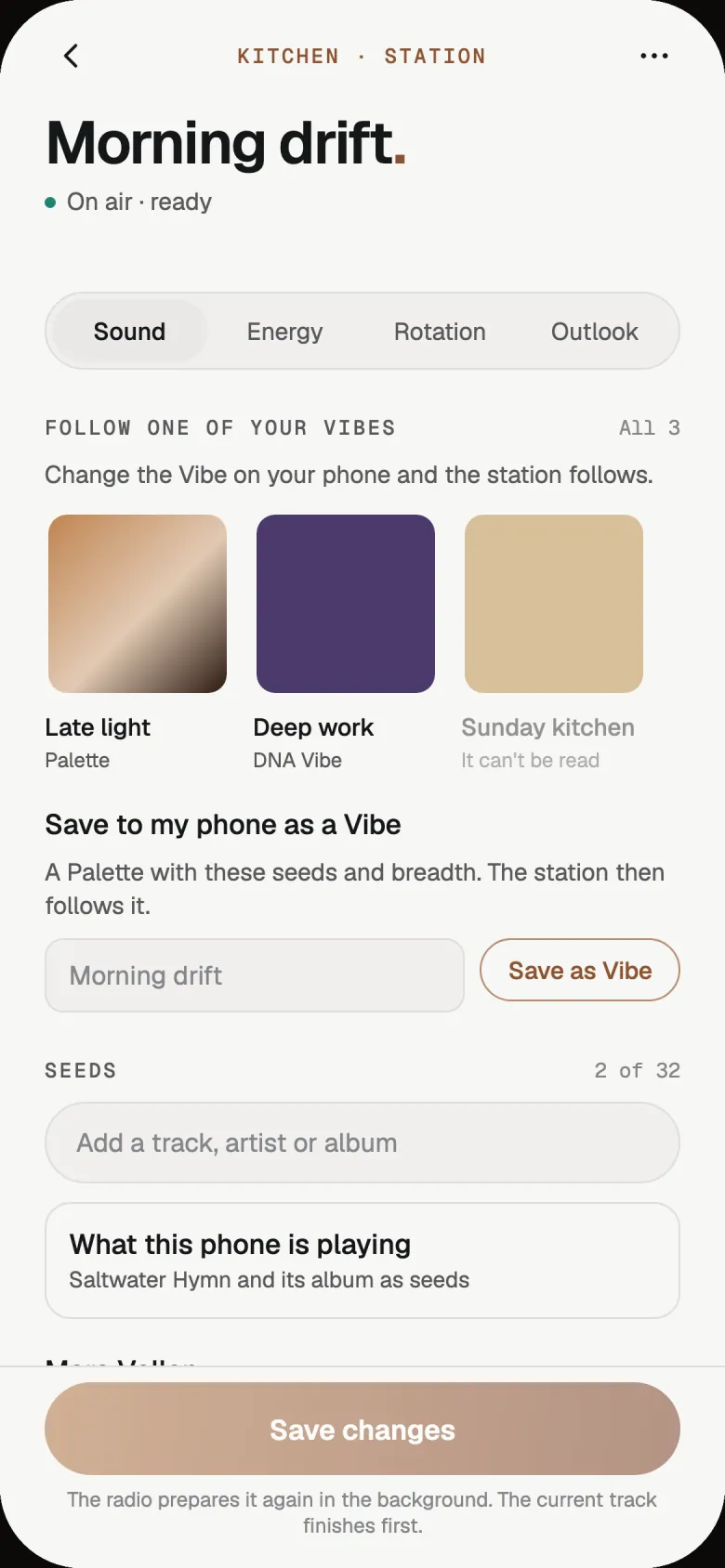
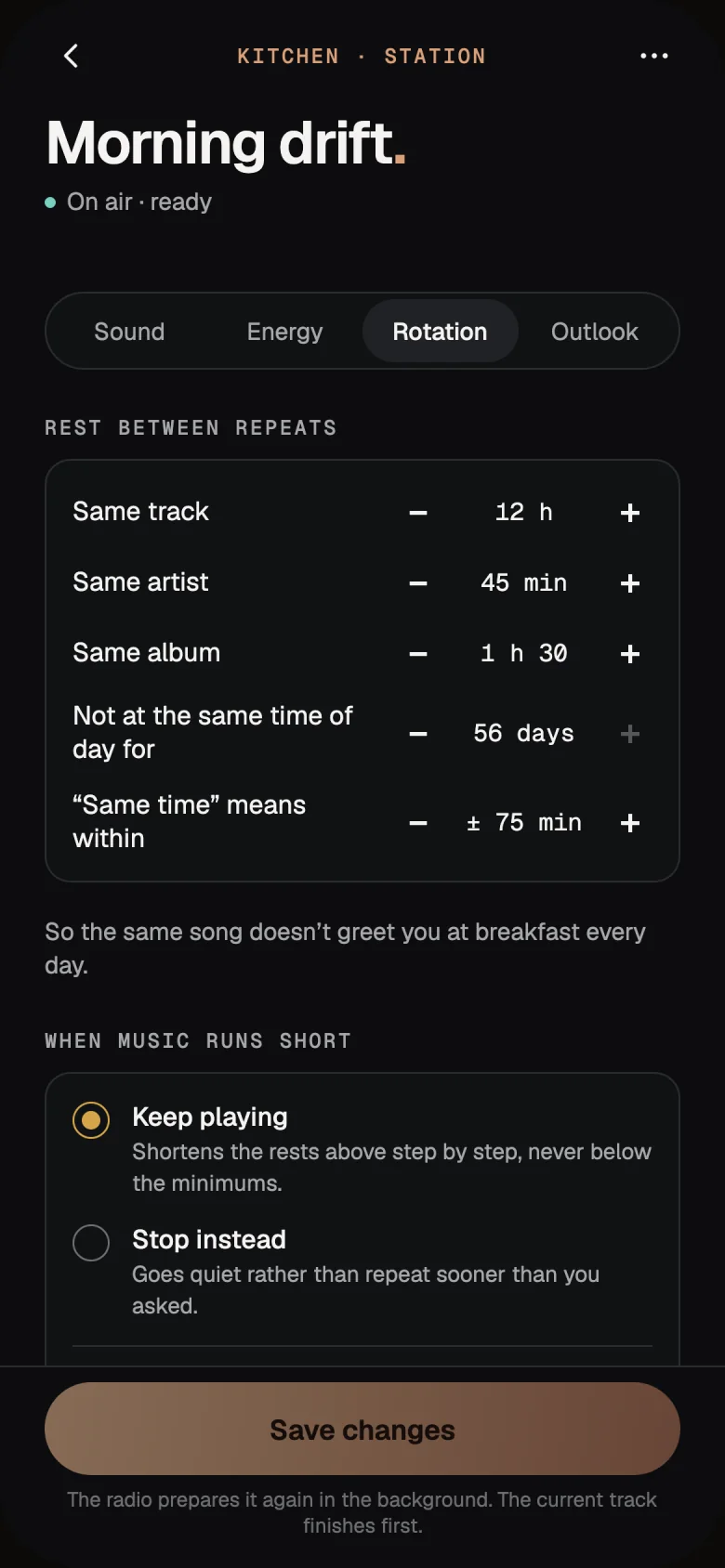
The defaults, all adjustable per station:
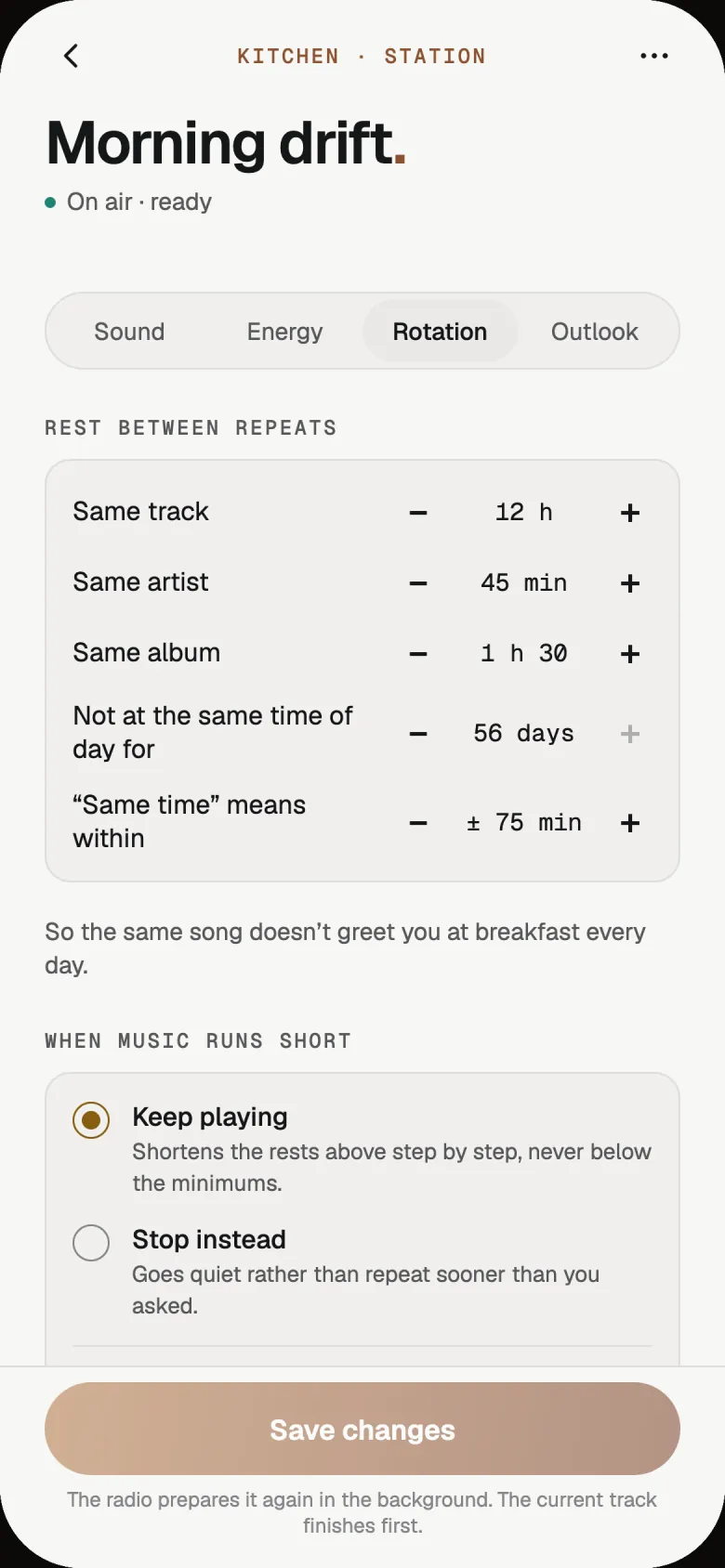
It also avoids playing a song at the same time of day for up to 56 days, so the same song doesn't greet you at breakfast every morning.
When a station runs short of music, choose: keep playing with shorter rests, never below the minimums you set (the default), or go quiet rather than repeat sooner than you asked.
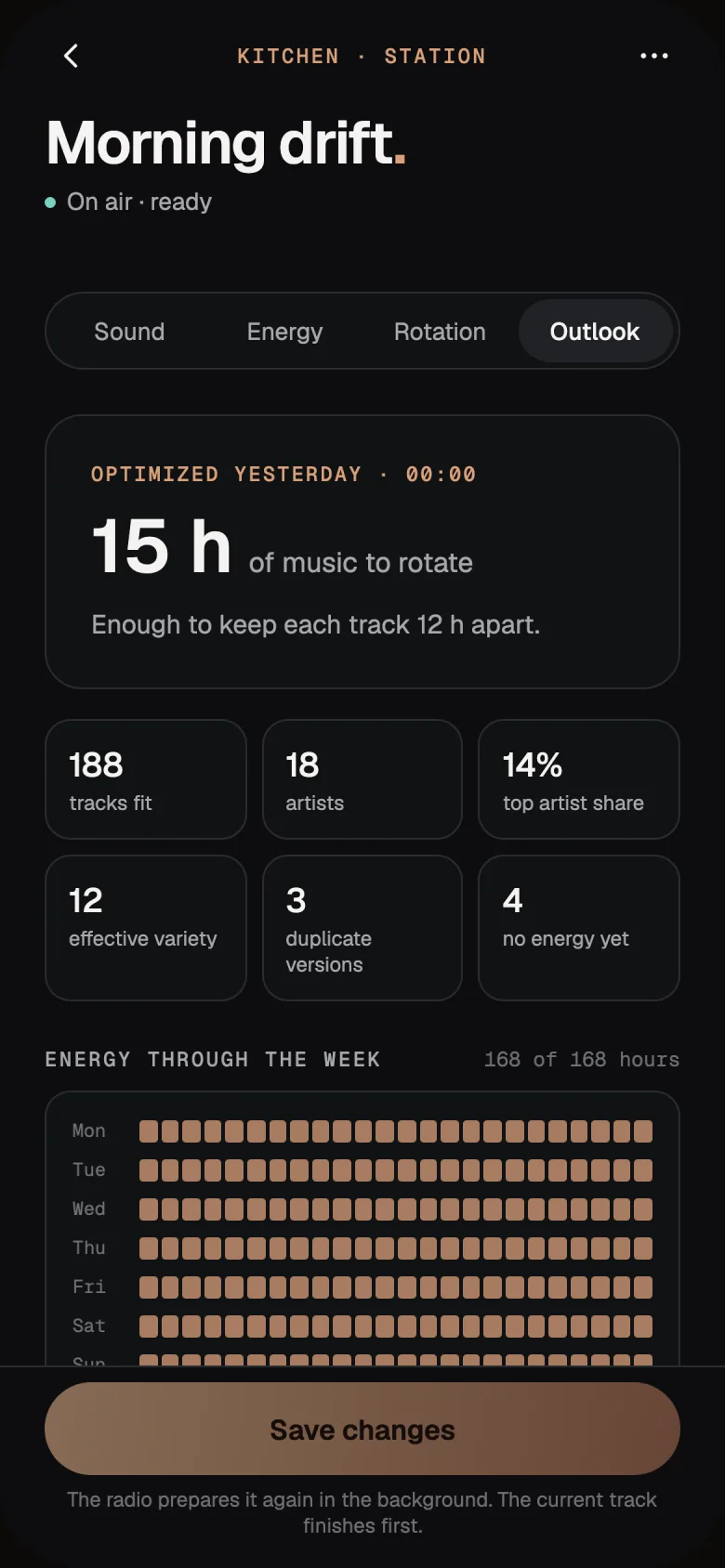
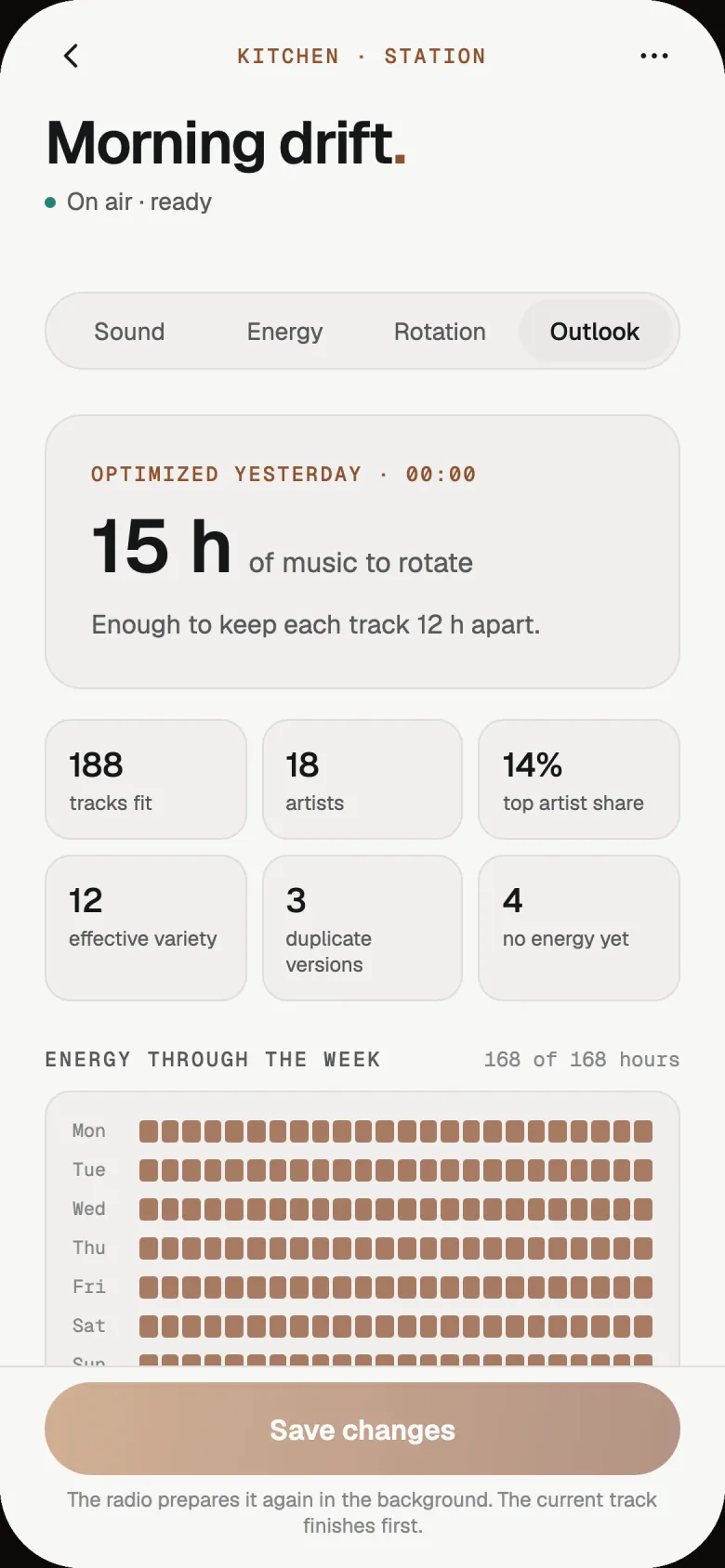
Preparing a station on a large library can take a while.
Daily flow
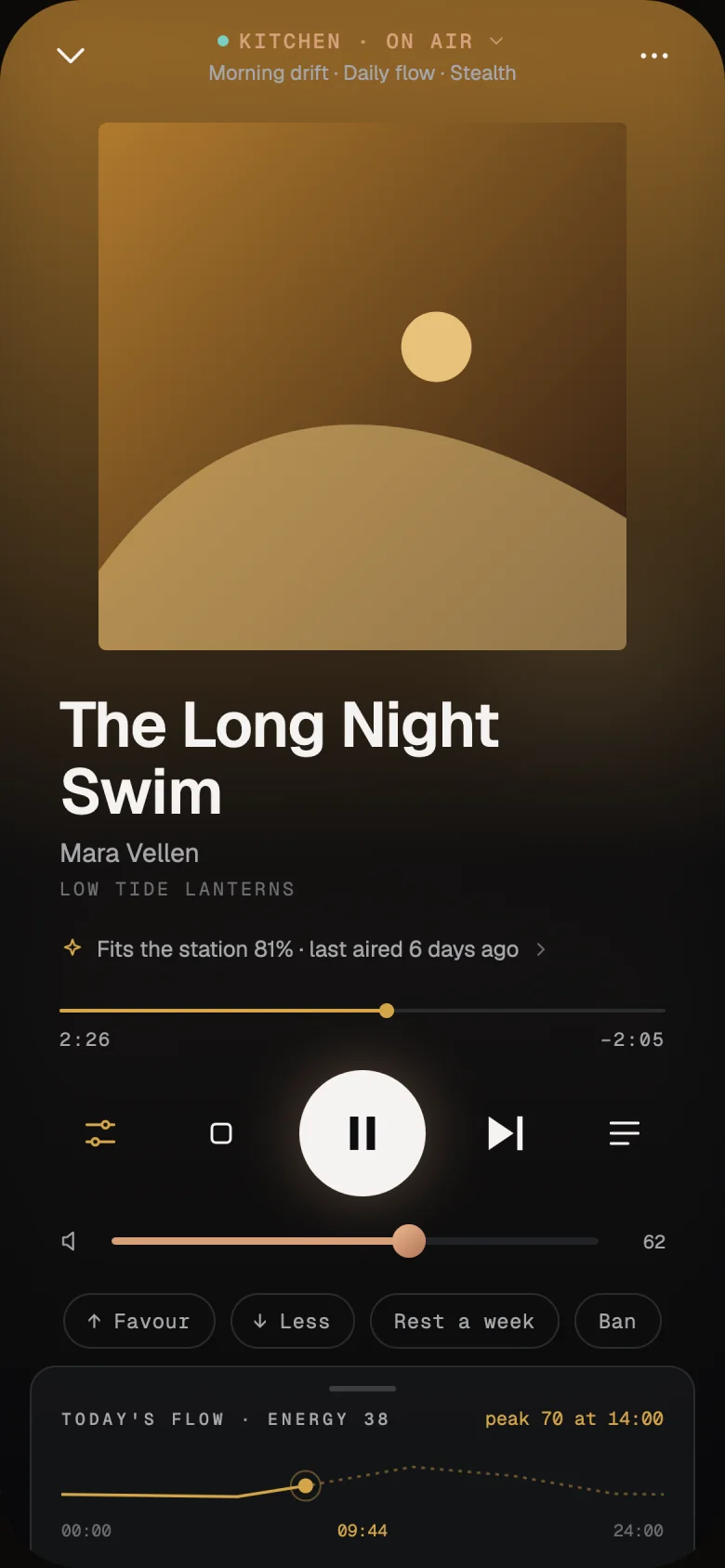
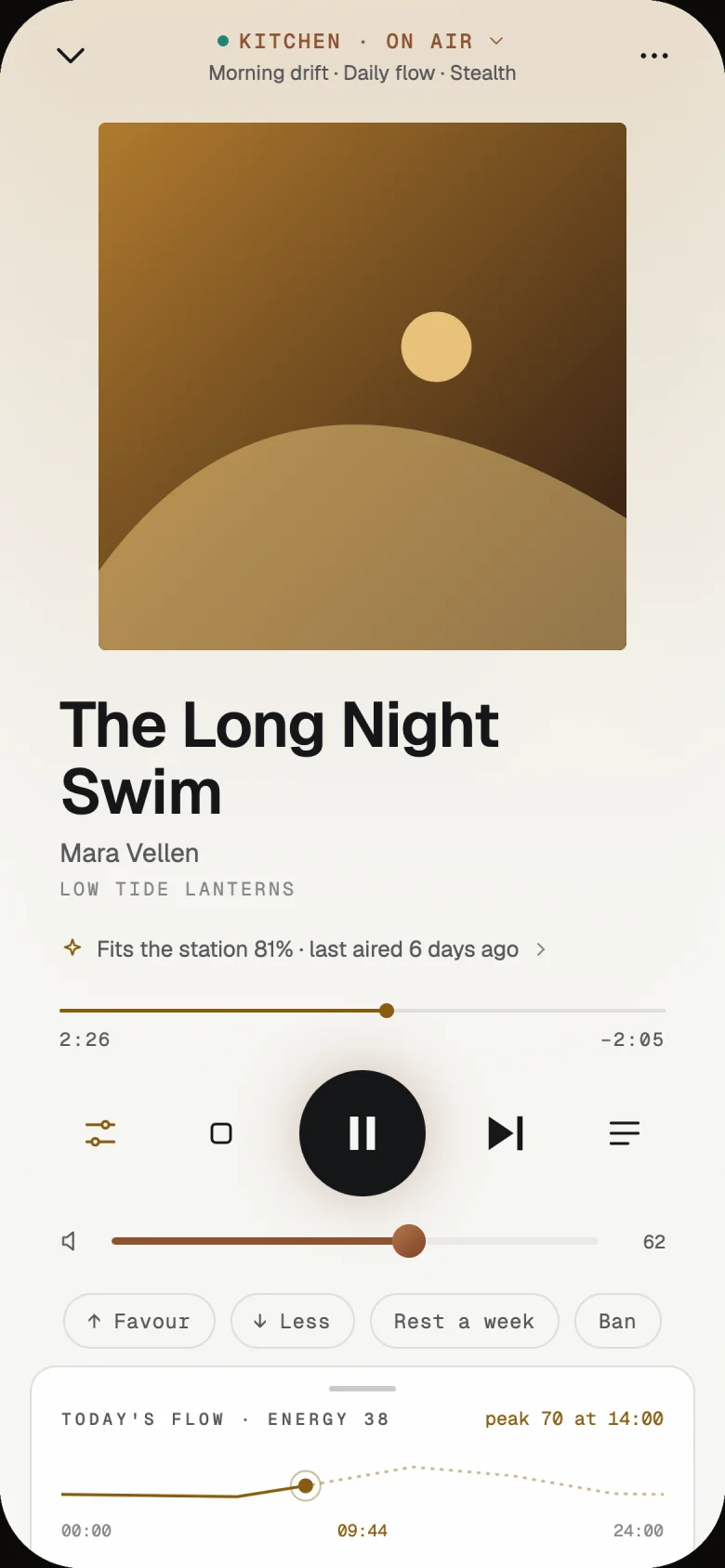
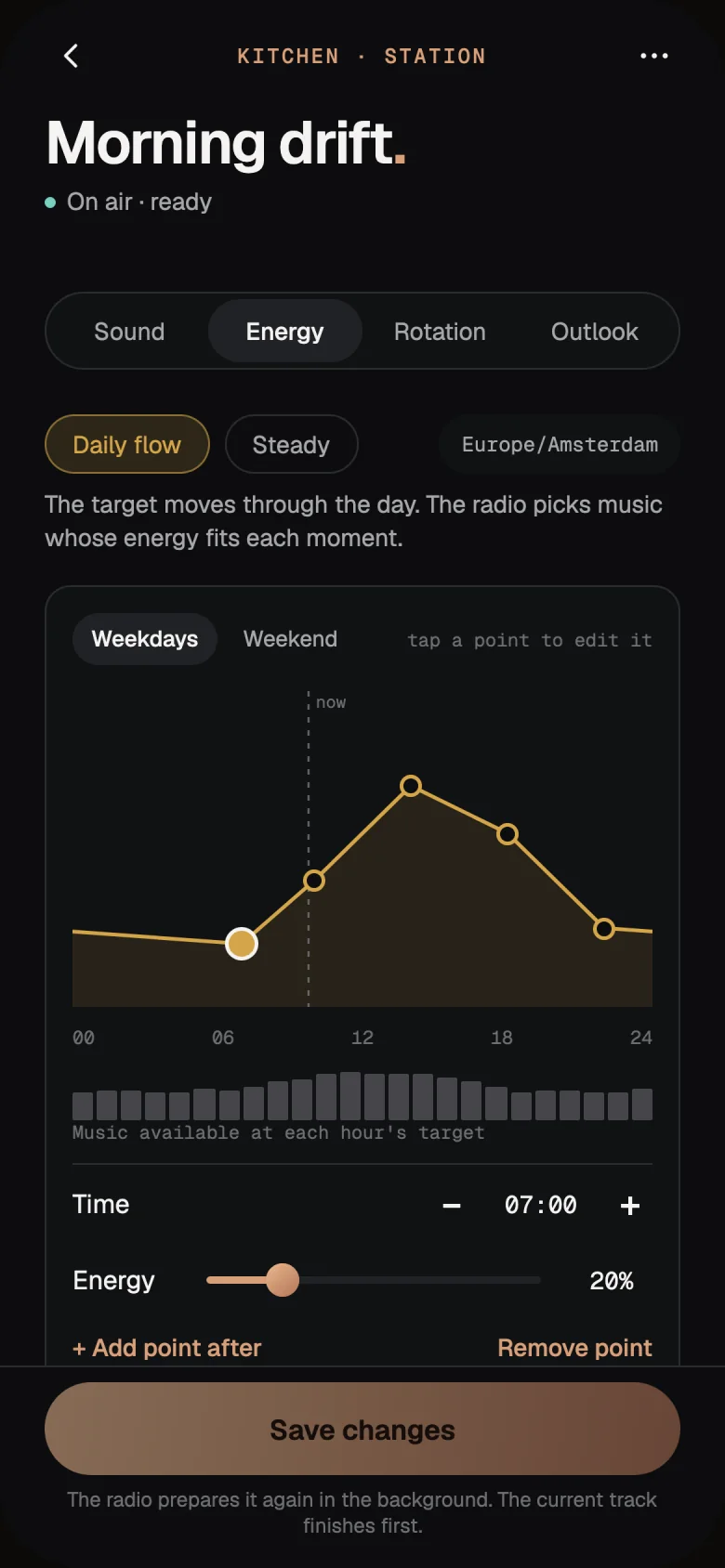
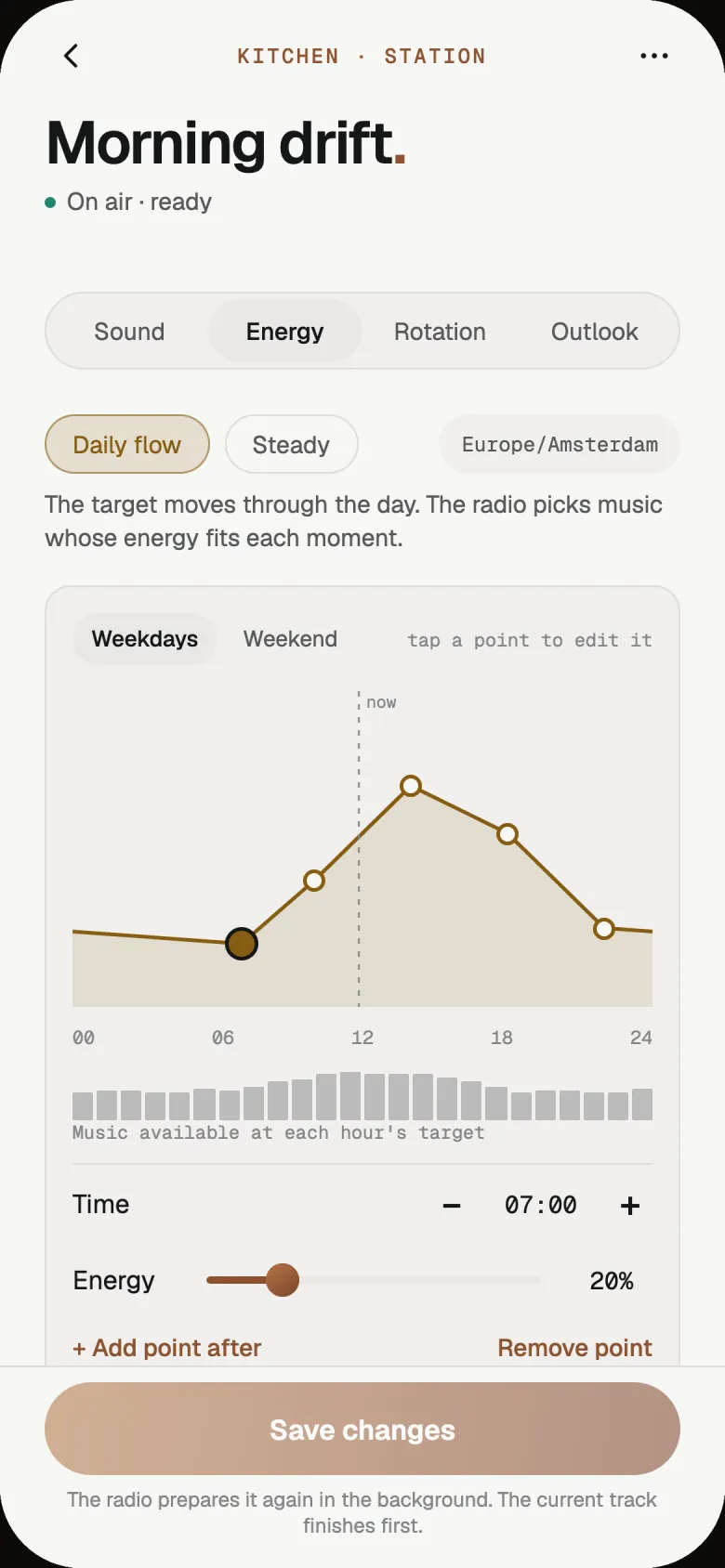
Every hour has a target energy. The radio picks music that fits each moment, from the songs it has measured, so mornings ease in and afternoons lift.
Move across the curve to see what the station looks for at each time of day.
At 14:00, the station looks for music around 70% energy.
Illustration of the default curve. Weekends can get their own; Steady keeps one level all day.
The remote
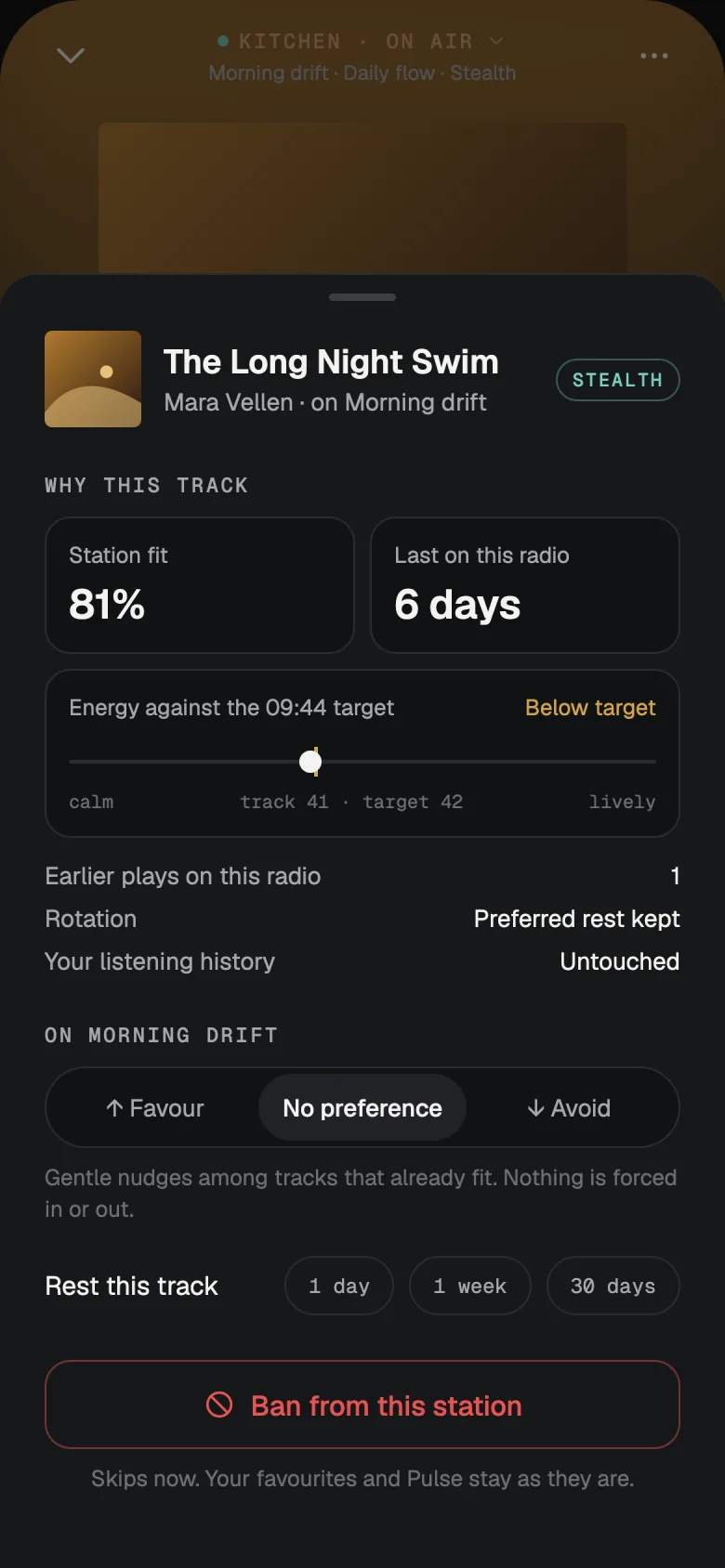
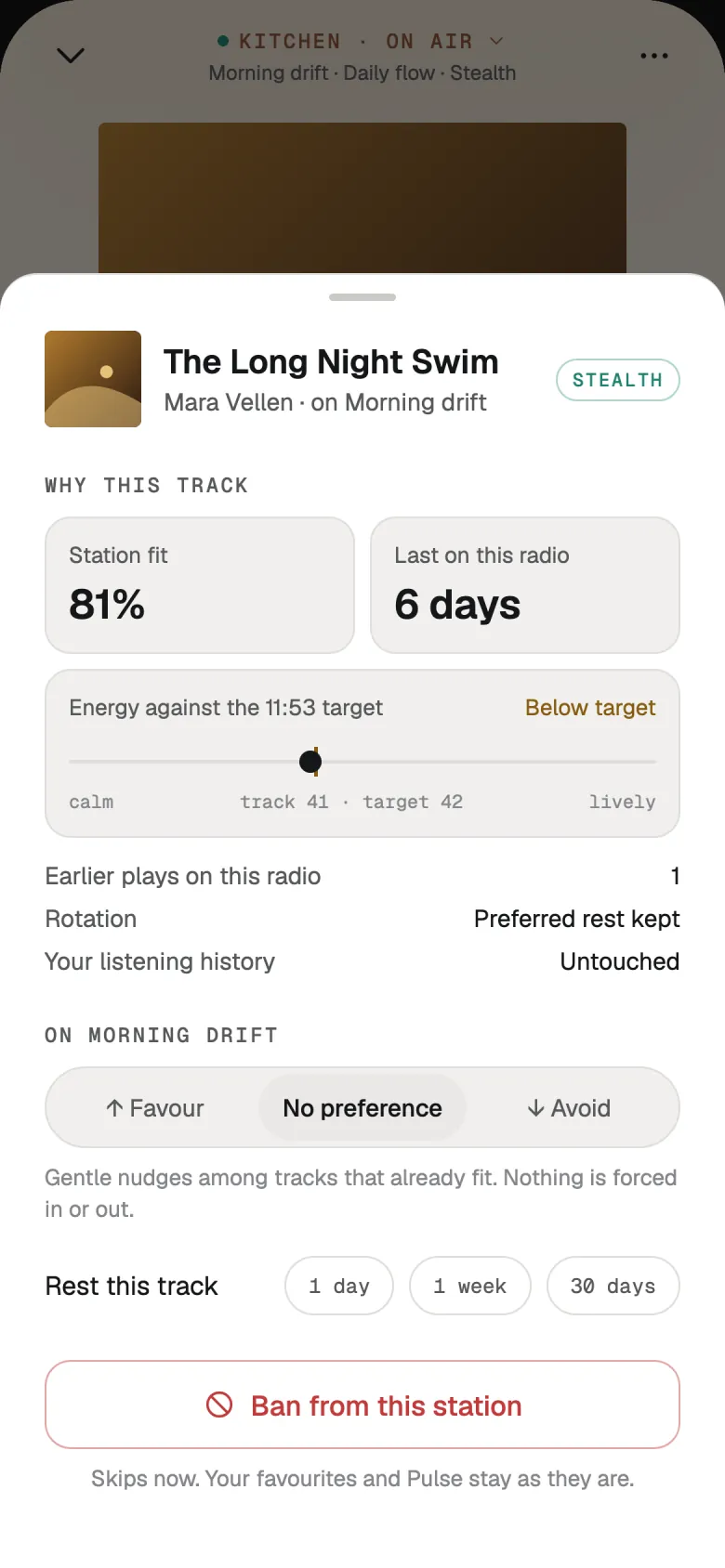
At home, a radio button appears on Lumae's Home. Tap it to see what's on air and why: how well it fits the station, when it last played, and how its energy compares to the moment.
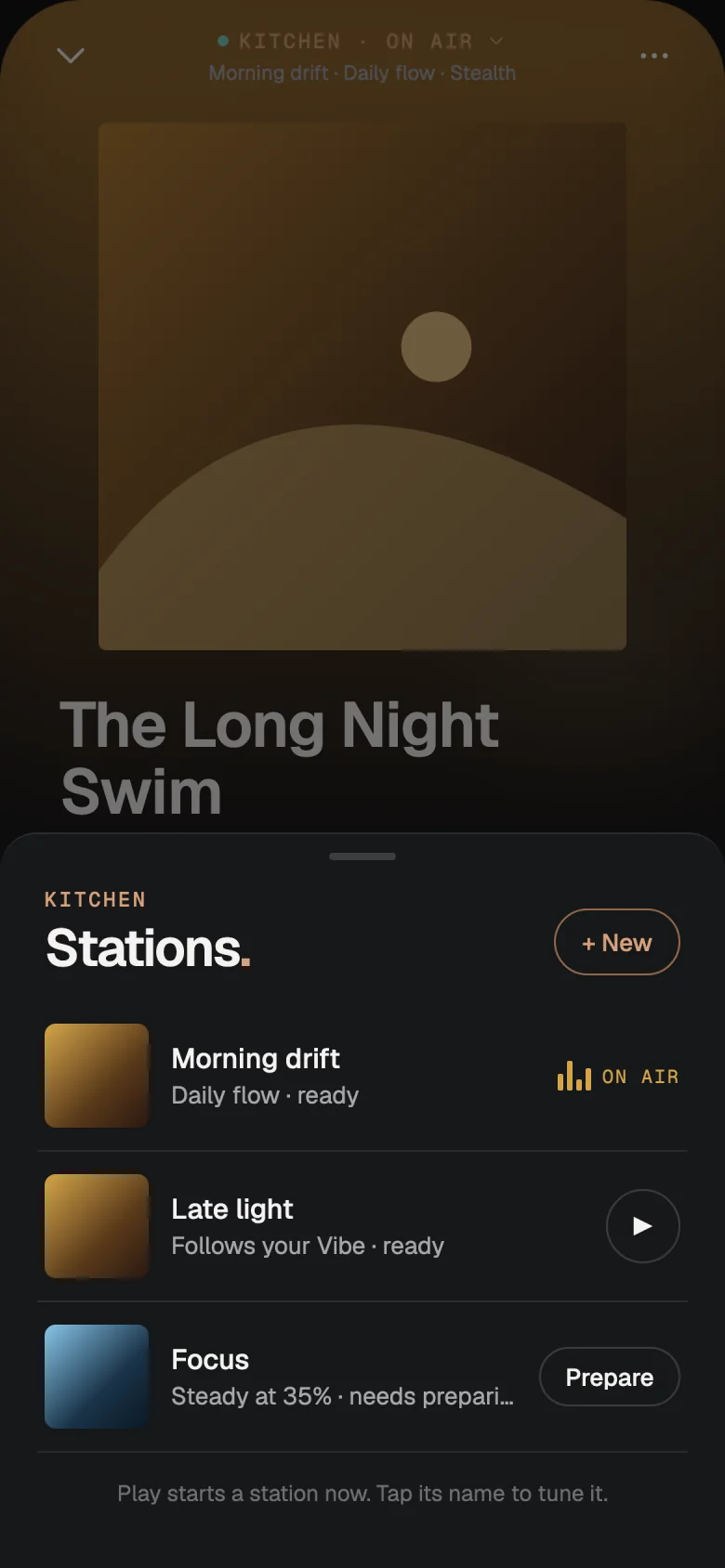
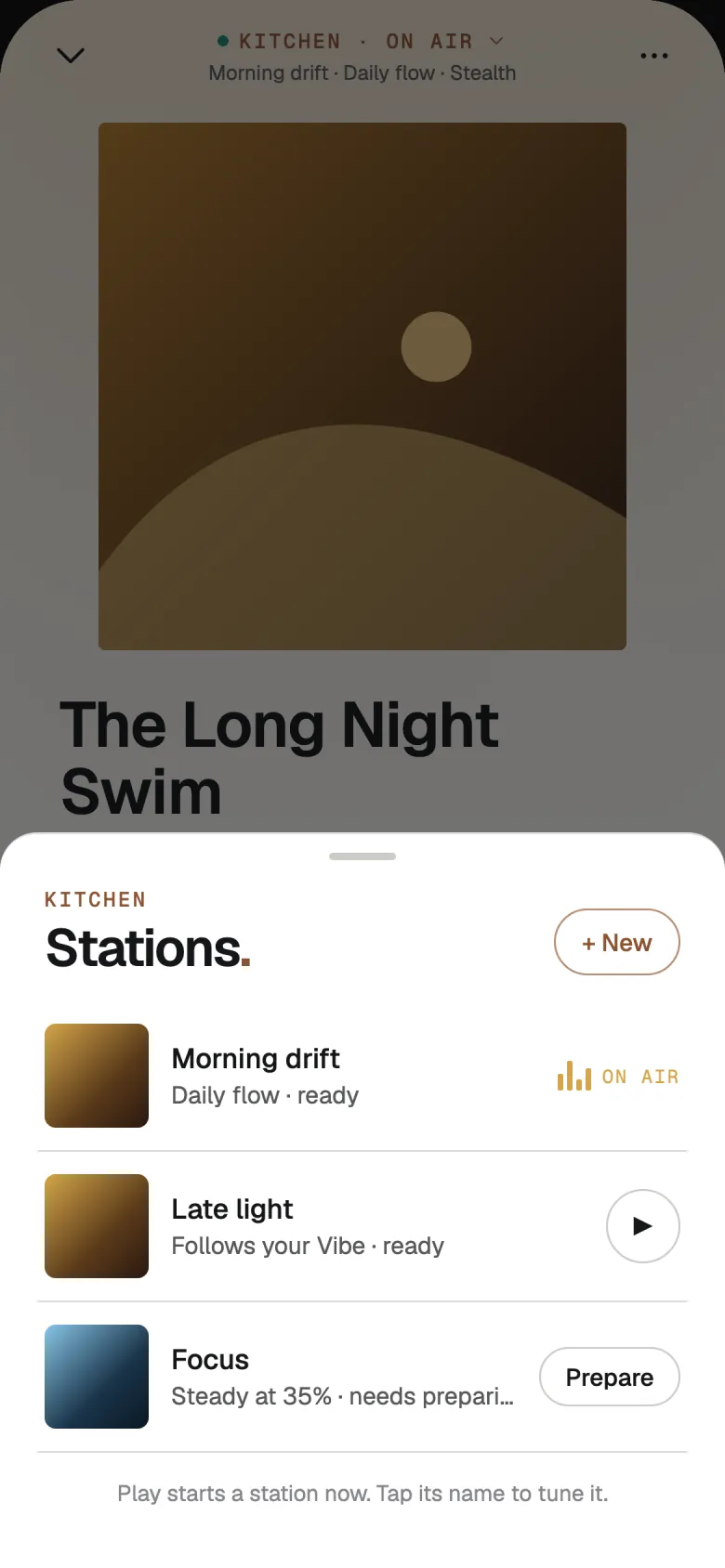
A gentle nudge toward a track that already fits. Nothing is forced in.
A gentle nudge away. The track stays on the station, just plays less.
Give a track a day, a week or 30 days off.
Gone from this station, starting now. Your favorites and Pulse stay as they are.
Around the clock
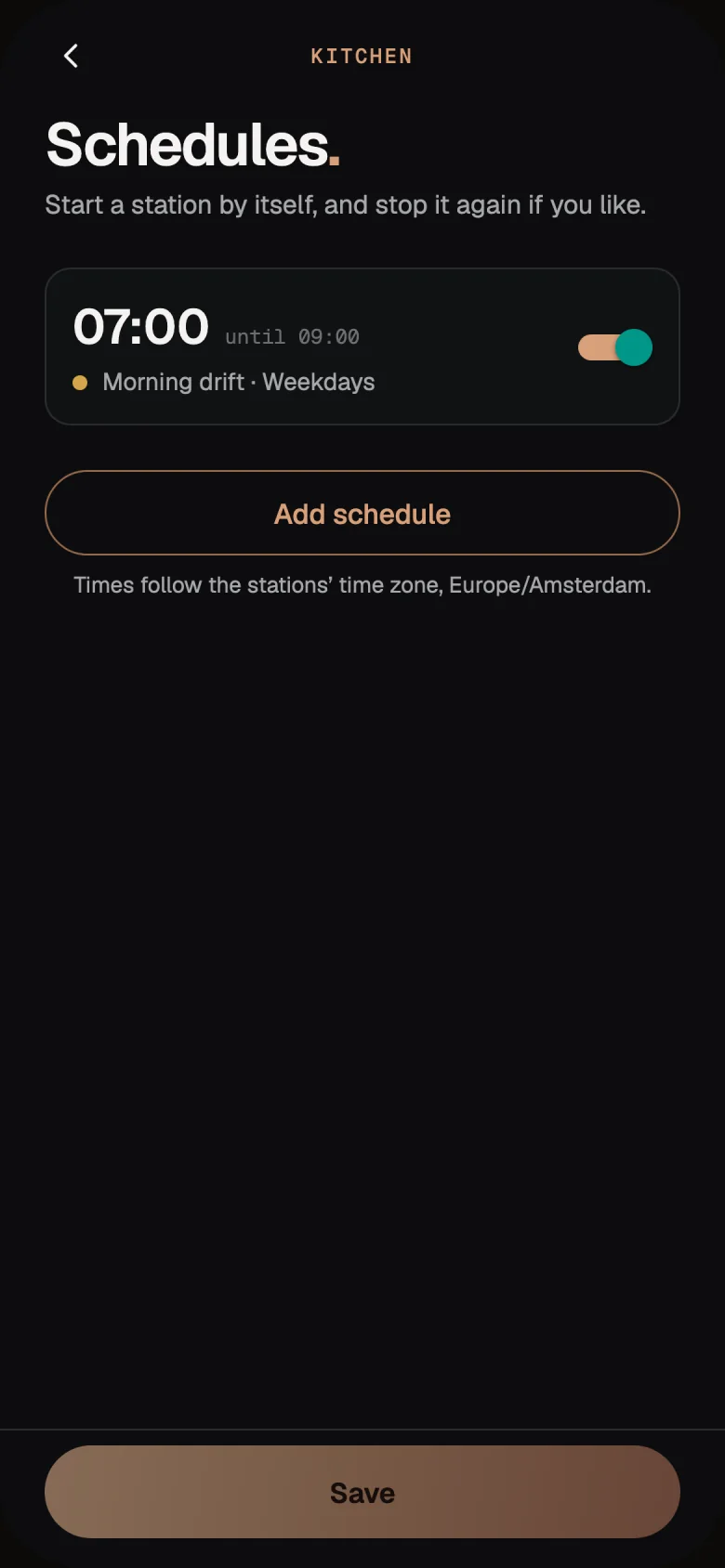
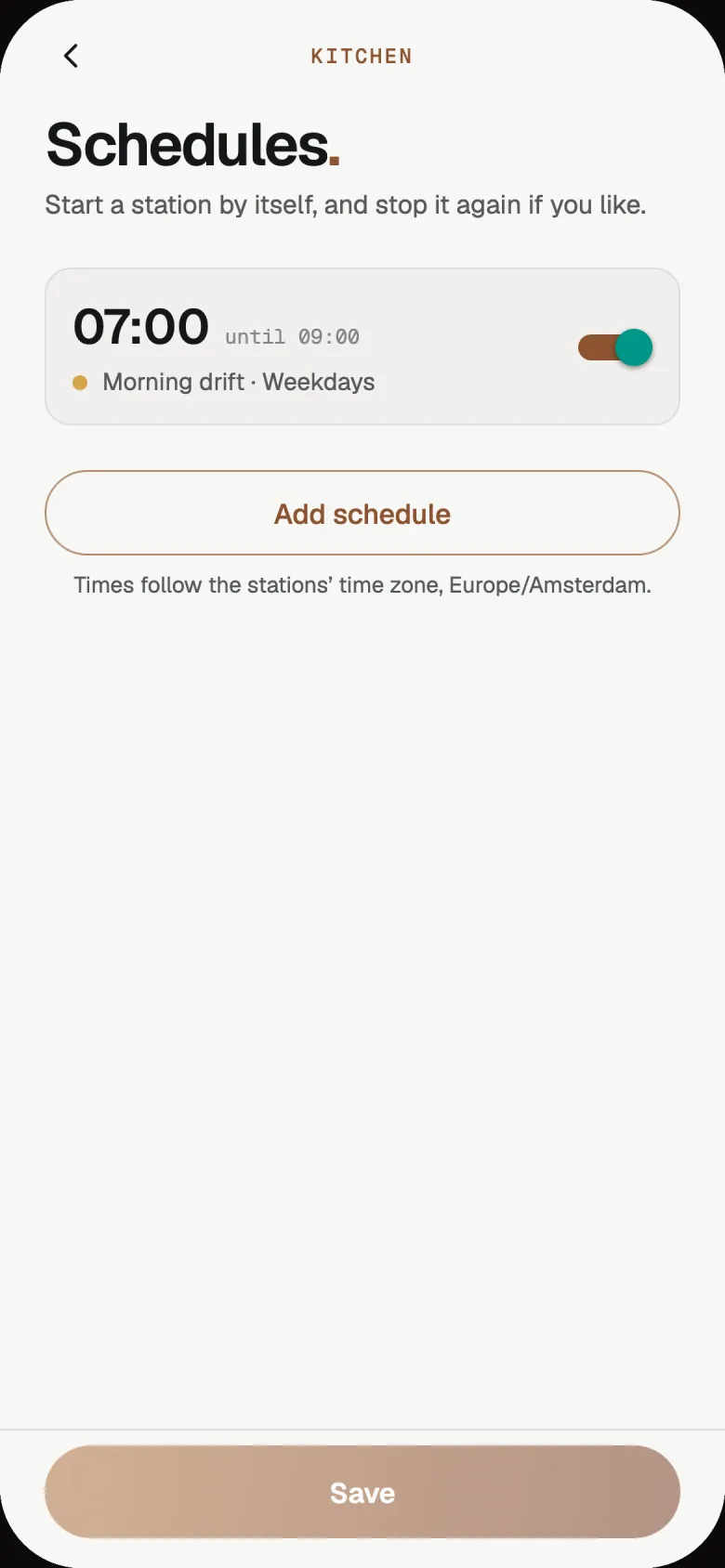
Start a station by itself, and stop it again, on the days you choose.
The radio aims to keep about six hours of upcoming music on its card, and syncs your library by itself every six hours.
A station that was playing starts again once the radio is back and its clock, music and sound output check out. A Stop stays a Stop.
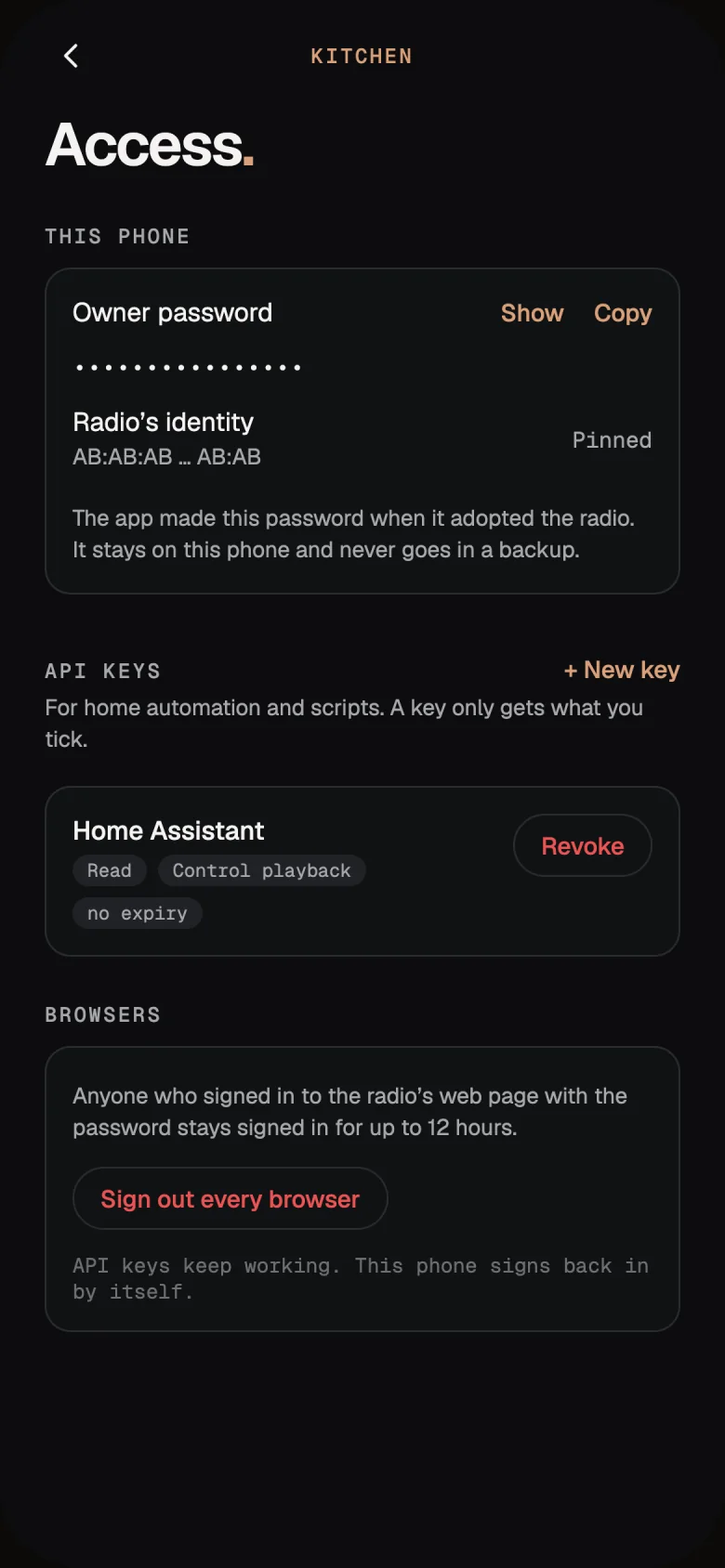
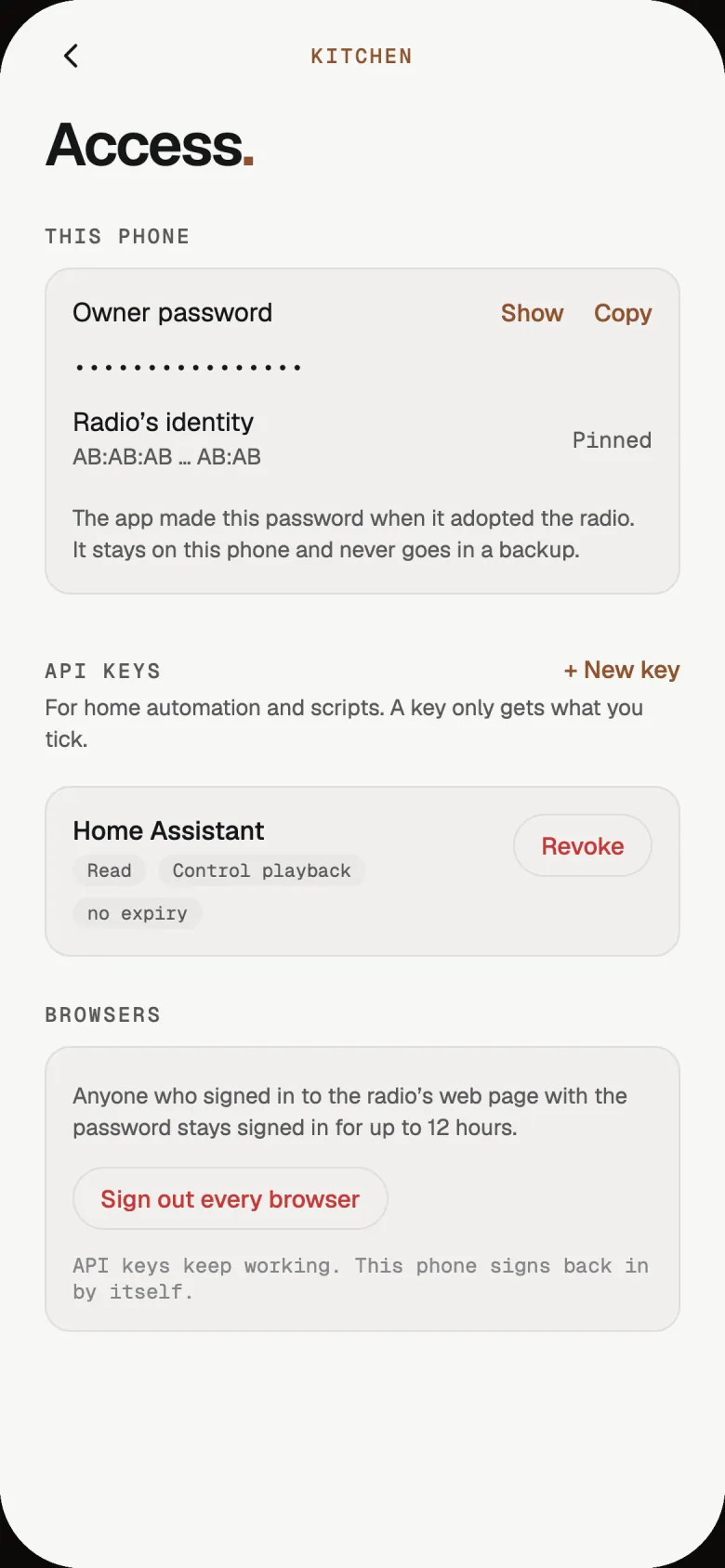
Give Home Assistant or your own scripts a key to the radio's HTTPS API that can only do what you allow. Revoke it any time.
Private by design
What the radio plays never becomes a listen in your history, a scrobble or a Pulse input. It keeps its own rotation history, only for rotation.
HTTPS tied to the radio's own certificate from the first connection, an owner password, and keys you can revoke.
The radio changes nothing on your music server. The only thing it writes to AudioMuse-AI is a Vibe you save or edit from a station. Your server's own logs still show what it streamed.
No account and no Lumae server. The radio, your servers and your phone talk to each other directly.
Getting started
Put Raspberry Pi OS (64-bit) on the Pi and install Lumae Radio over SSH with its signed installer. Install steps
In Lumae, open Settings → Servers & accounts → Lumae Radio. Your phone finds the radio, adopts it, sends it your server details and starts the first sync.
Pick a Vibe, a song or a few seeds, set the energy for the day, and press play.
Adopt a new radio soon after installing it, on a network you trust: until a radio has an owner, the first phone that adopts it wins.
Install
Lumae Radio installs over SSH on Raspberry Pi OS Lite (64-bit), the Debian 13 image. The files come from GitHub; the checks below come from this page, so a changed download can't pass them.
Lumae Radio 0.4.0-beta.1
In Raspberry Pi Imager choose Raspberry Pi OS Lite (64-bit), not the Legacy image. Set a host
name (the radio becomes <name>.local on your network), a user and SSH, then sign in over SSH
and install what the radio needs:
sudo apt-get update
sudo apt-get install -y --no-install-recommends python3 openssl ca-certificates \
  libstdc++6 libgcc-s1 libgstreamer1.0-0 libgstreamer-plugins-base1.0-0 \
  gstreamer1.0-plugins-base gstreamer1.0-plugins-good gstreamer1.0-alsa \
  libasound2t64 libsqlite3-0 alsa-utils avahi-daemon
Set up your DAC board's driver as its maker describes, if you use one.
mkdir -p ~/lumae-radio && cd ~/lumae-radio
r=lumae-radio-0.4.0-beta.1-linux-arm64
url=https://github.com/rendyhd/lumae/releases/download/radio-v0.4.0-beta.1
for f in $r.tar.gz $r.manifest.json $r.manifest.sig $r.install.py release-key.pem; do
  curl -fLO "$url/$f"
doneBoth lines must say OK. If either doesn't, stop and don't install.
sha256sum -c <<'EOF'
cccccba7914ad03c6f70c6e7c9a8daf350c3230717ac47fe589a8f90ca1d2ee4  release-key.pem
7a2c4825e532739b7ee67cd7fca51ef5f19b5e51a4613f95b695c1ee423fa06a  lumae-radio-0.4.0-beta.1-linux-arm64.install.py
EOF
Then keep the key where the installer looks for it. Every release is signed with it.
sudo install -d -o root -g root -m 755 /etc/lumae-radio
sudo install -o root -g root -m 644 release-key.pem /etc/lumae-radio/release-key.pemThe installer checks the signature and every file before it changes anything. The first command only checks; the second installs and starts the radio.
args="--archive $r.tar.gz --manifest $r.manifest.json --signature $r.manifest.sig --public-key /etc/lumae-radio/release-key.pem"
python3 -I -B $r.install.py $args
sudo python3 -I -B $r.install.py $args --installSoon after installing, open Lumae on your phone: Settings → Servers & accounts → Lumae Radio. Your phone finds the radio, adopts it and sends it your server details. Then choose the sound output on the radio while it's stopped.
sudo python3 -I -B /opt/lumae-radio/current/packaging/install.py $args --install. Your stations,
history and settings stay; the installer keeps a copy of the databases first.
release-key.pem: cccccba7914ad03c6f70c6e7c9a8daf350c3230717ac47fe589a8f90ca1d2ee4. The radio refuses a release
signed with any other key.
lumae-radio-0.4.0-beta.1-linux-arm64.tar.gz:
187de88324c18ee141d44b56b3a8c6dd4201ab29693baf3e00fd49f092308f3f. The installer checks it against the signed manifest itself.
Questions
No. Lumae Radio is software you install on your own Raspberry Pi. Install the beta
No. It plays through a DAC board or USB DAC on the Pi, connected to the speakers in that room.
No. The radio is always in Stealth. Favour, Less, Rest and Ban only affect that station, never your own favorites, history or Pulse.
It needs to reach your servers, and it sets its clock from the network before it plays. If the network drops, it plays on from the music saved on its card, about six hours by default; how well that holds up is still being tested.
FLAC, MP3, Ogg Vorbis, Opus and WAV. For AAC and ALAC files it asks Navidrome for a FLAC copy; that path is still being tested.
No. It's made for a Raspberry Pi with speakers in the same room, and that's the only setup being tested.
The radio builds on Lumae. Join the beta, make a few Palettes or DNA Vibes you love, and they'll be ready to go on air.